Setting up
Connections and rules
Send face recognition events to Home Assistant, Loxone, KNX, MQTT, webhooks or your phone: connections, rules, placeholders, delivery log.
On this page
Recognising somebody is half the job; the other half is telling the systems that act on it. Under Notifications that happens in two steps, and keeping them apart is what makes the page easy to use:
- A connection says where a message goes: an address, a sign-in, a default wording. Set up once and tested, it can be used by any number of rules.
- A rule says when: which event, which people, which cameras, at what times, and then which connections receive a message.
Without a rule, nothing is sent, however many connections exist. The one exception is Home Assistant discovery: its devices receive every event on their own.
FaceStream.AI reports; your home automation decides what happens next.
Connections
Add connection lists every kind of connection. The ones your edition does not include are shown, greyed out, with the edition that has them.
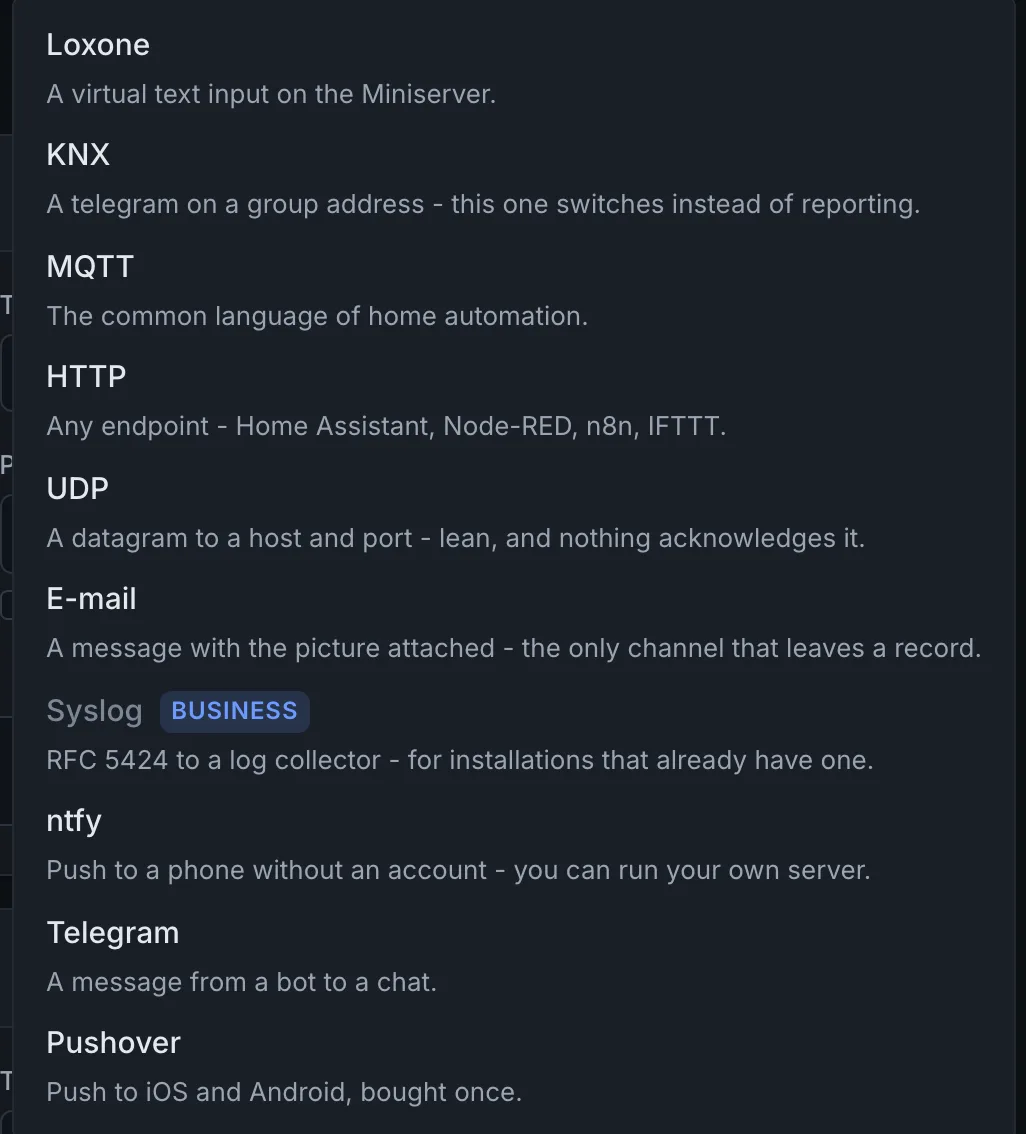
| Type | Good for | Page |
|---|---|---|
| Loxone | A virtual input on a Loxone Miniserver | Face recognition with Loxone |
| KNX | A group address on the KNX bus, over a KNXnet/IP gateway | KNX |
| MQTT | Home Assistant, ioBroker, openHAB, Node-RED, anything with a broker | Home Assistant, MQTT, webhooks and UDP |
| HTTP | A webhook: any address that accepts a request | MQTT, webhooks and UDP |
| UDP | A plain datagram to a host and port. The only type in Free | MQTT, webhooks and UDP |
| A message with the face photo, the whole picture or both, a record that stays | Push messages, e-mail and syslog | |
| Syslog | A log collector, in Business and up | Push messages, e-mail and syslog |
| ntfy, Telegram, Pushover | A push message with a picture on a phone | Push messages, e-mail and syslog |
Each connection is a card with a name, call it after what it is for, the rules refer to it by that name, a switch to pause it, Test and Remove. The same type may appear more than once: two webhooks to two addresses, or one Loxone connection per virtual input.
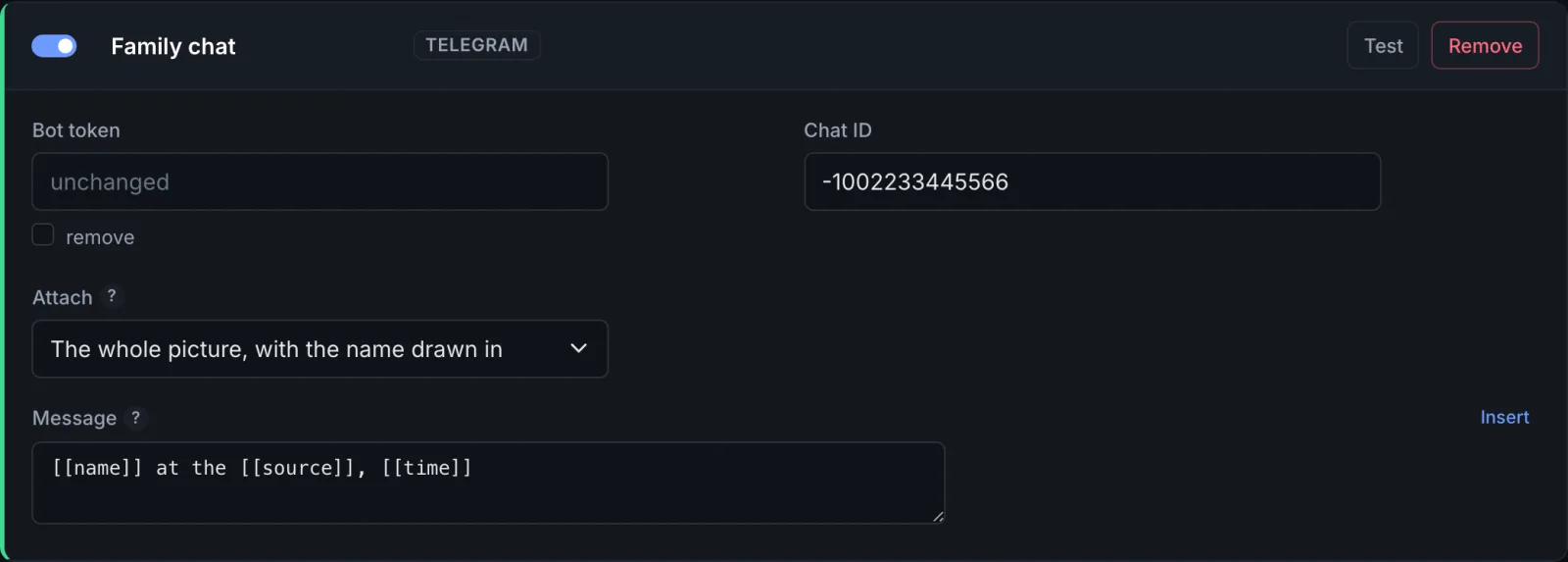
Test sends a message for the name FaceStream test with what is in the form right now, even before you save, and says whether it was delivered or what went wrong. Passwords and tokens are not shown again once saved; an empty field keeps the stored one, and remove next to it deletes it.
Messages and placeholders
Every connection has a Message, and some a subject or a topic as well. Anything in double square brackets is replaced when the message goes out. Insert next to the field lists the placeholders with the values they would have right now, and below the field you see what would be sent. A placeholder with a typo is pointed out as you type instead of turning up word for word in a message.
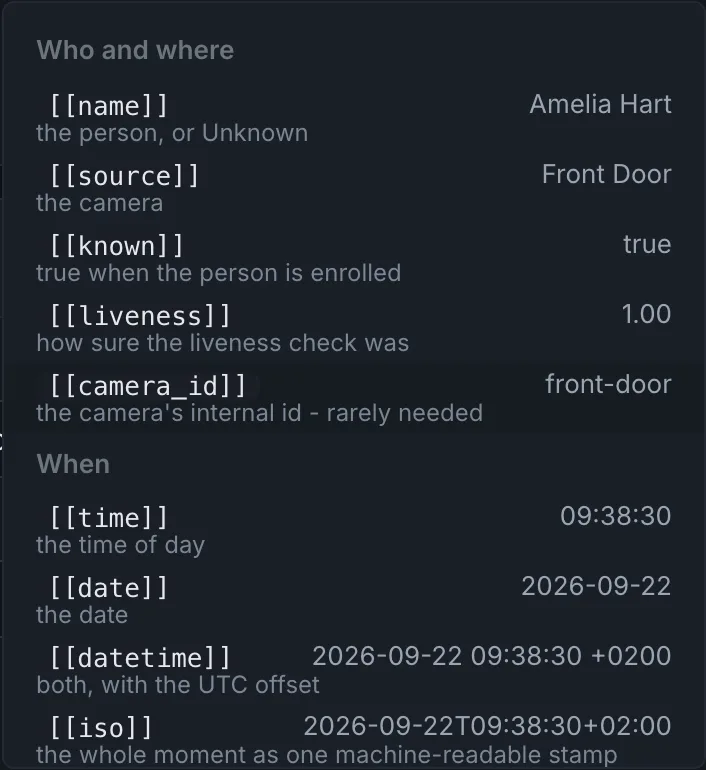
| Placeholder | Becomes |
|---|---|
[[name]] |
The person, or Unknown |
[[source]] |
The camera, by its name |
[[known]] |
true for an enrolled person, false otherwise |
[[liveness]] |
How sure the liveness check was, 0.00 to 1.00, or not checked |
[[camera_id]] |
The camera's internal ID |
[[time]] |
The time of day, 14:32:05 |
[[date]] |
The date, 2026-09-22 |
[[datetime]] |
Both, with the offset from UTC: 2026-09-22 14:32:05 +0200 |
[[iso]] |
The same as one machine-readable stamp: 2026-09-22T14:32:05+02:00 |
[[timestamp]] |
Seconds since 1970 |
[[event]] |
visit_started, visit_ended, unmatched, spoof or trigger |
[[reason]] |
request or continuous, what made the camera look |
[[duration]] |
How long the visit lasted, in seconds, for Visit ends |
[[sightings]] |
How often the person was seen during the visit, for Visit ends |
[[image_url]] |
A link to the face photo |
[[frame_url]] |
A link to the whole picture |
The two links open without signing in, so that a phone or a home automation system can
load them. They point to the address the interface was last opened under, open it by an
address the receiver can reach, such as http://192.168.1.20:8000, not localhost.
The message of a connection is its default. A rule can give each of its actions its own wording instead, in Pro and up.
Rules
Add rule creates a rule with two halves: When and Then. Save connections and rules at the bottom of the page puts all changes into effect at once, immediately.
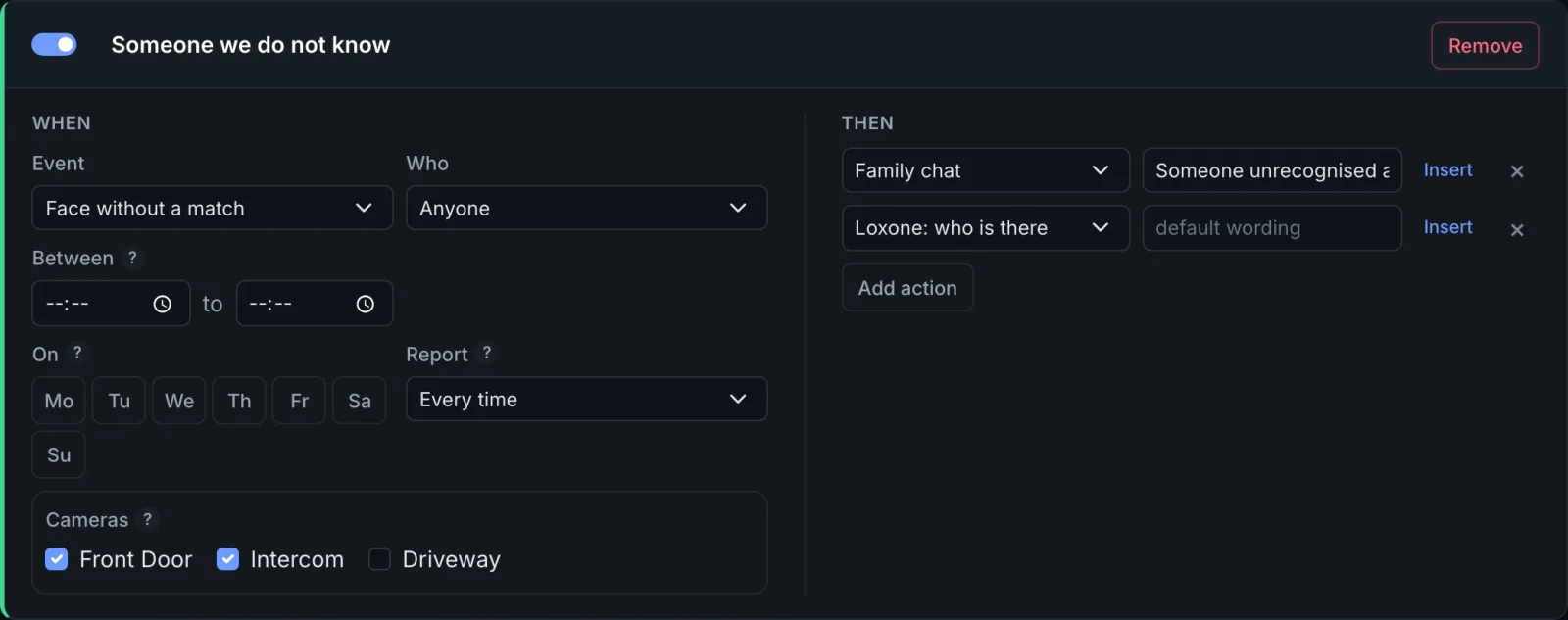
When
| Field | What it does |
|---|---|
| Event | Which event the rule reacts to, see the table below |
| Who | Anyone, Known people, Unknown people or Selected people, then tick the people. In Free, a rule reacts to anyone |
| Between | A time window, for example 22:00 to 06:00. Empty means any time |
| On | Days of the week. None selected means every day |
| Report | How often the rule reports the same person, see Days and quiet periods |
| Only when the liveness check passed | The rule acts only on faces the liveness check has passed, for rules that open a door. Visit starts and Visit ends only |
| Cameras | Which cameras the rule listens to. None ticked means all. Only shown once there is more than one camera |
The events, with what they mean:
| Event | Happens when |
|---|---|
| Visit starts | Somebody is recognised: at a camera recognising continuously, each new visit, Unknown included; at a camera on request, the answer to each request, once per person |
| Visit ends | Nobody has seen that person for the Visit gap. Pro and up |
| Face without a match | A request ran out of time: somebody was there, nobody was recognised |
| Request received | A request came in, the bell was pressed, before anybody is recognised |
| Suspected spoof | A face was judged to be a picture held up to the camera. Pro and up |
Which event for which question
| You want to know | Camera recognises | Event | Who |
|---|---|---|---|
| A family member is at the door | either way | Visit starts | Selected people |
| Somebody unknown rang the bell | On request only | Face without a match | Anyone |
| Somebody unknown is in the garden | Continuously | Visit starts | Unknown people |
| Somebody rang, whoever it is | On request only | Request received | Anyone |
| Somebody has left again | either way | Visit ends | as needed |
| A photo was held up to the camera | either way | Suspected spoof | Anyone |
The second row is the one people miss: at a doorbell, a stranger is a Face without a match, never a Visit starts. Recognition and requests explains why.
Then
Each action is one line: a connection and optionally its own wording for this rule. empty means the connection's default. Insert adds placeholders, the cross removes the action, Add action adds another. A rule has one action in Free and up to five in Pro, and the actions of a rule go out one after the other in the order listed.
Rules do not wait for each other. A receiver that does not answer delays only the rule that sends to it.
Days and quiet periods
A rule can be limited to certain times with Between and to certain days with On. Leave the days unselected for every day. A window over midnight belongs to the day it starts on: a rule for Friday, 22:00 to 06:00, still applies at 02:00 on Saturday.
With Continuously, a person moving about a room starts a new visit every time they leave the picture for longer than the Visit gap, and a rule on Visit starts reports each of those visits. Report decides how often a rule reports the same person:
| Report | What happens |
|---|---|
| Every time | Every event the rule matches is reported. This is how rules behaved before the setting existed |
| Then pause | The first event is reported, then nothing more about that person for the given number of minutes (up to 24 hours) |
| Once per time window | Once per person in each window, once per morning for 06:00 to 10:00, once per night for 22:00 to 06:00. Without a window, once a day |
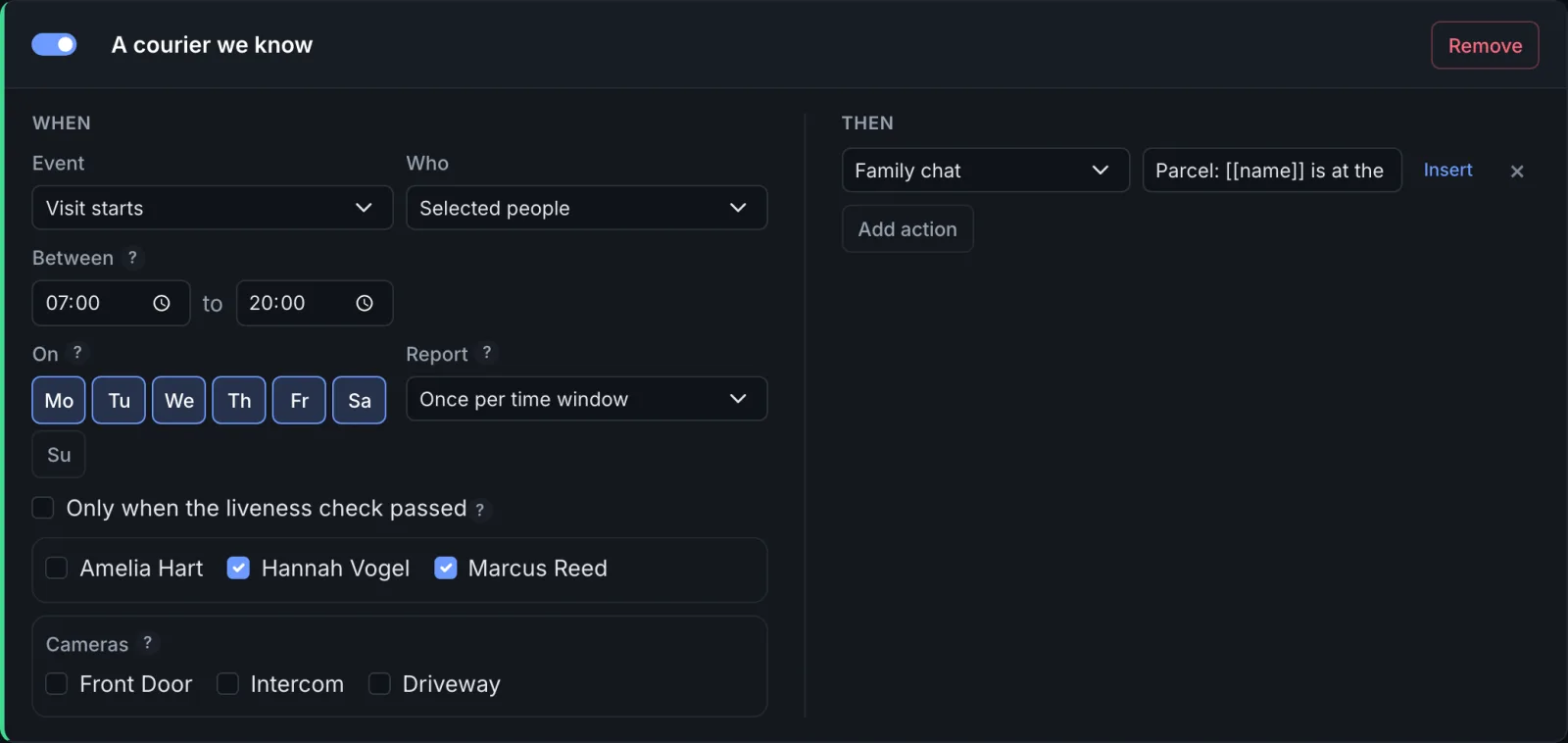
Say the kitchen TV should come on when somebody comes down on a weekday morning: a rule on Visit starts, Between 06:00 and 10:00, On Monday to Friday, Report Once per time window. The first person seen switches it on; walking out and back in does not send the command again.
A few details worth knowing:
- Per person, per rule. Two people each get their first report. Everybody
Unknowncounts as one person. Two rules for the same person count separately. - Across cameras. A rule listening to several cameras reports a person once, not once per camera.
- Only what was sent counts. A rule whose connections are all switched off has not reported anything, so its quiet period does not start.
- Requests are always answered. A rule on Request received has no Report setting.
- A restart starts over. Quiet periods are not kept across a restart or an update of FaceStream.AI; the first event afterwards is reported again.
- Home Assistant is not affected. Its device receives every event regardless of the rules, see Home Assistant.
FaceStream.AI reports; your home automation decides. Holidays, heating seasons or whether anybody is on leave are for the home automation to know, not for a rule.
Rules that open a door
FaceStream.AI reports; the lock is opened by your home automation. When it does so on a recognised face, three things keep it on the safe side:
- React to the event type, not only the name. A suspected spoof carries the name of
the person in the photo. A rule on Visit starts ignores it; an automation that only
looks at
namedoes not. - Tick Only when the liveness check passed. The rule then acts only on faces the liveness check has actually passed. If the check is switched off for the camera, or is not part of the edition any more, the rule stays quiet instead of acting without it. Available for Visit starts and Visit ends, in Pro and up.
- Pair the face with the bell. With On request only, nothing happens until somebody presses the button, and the face answers a question instead of being the only key.
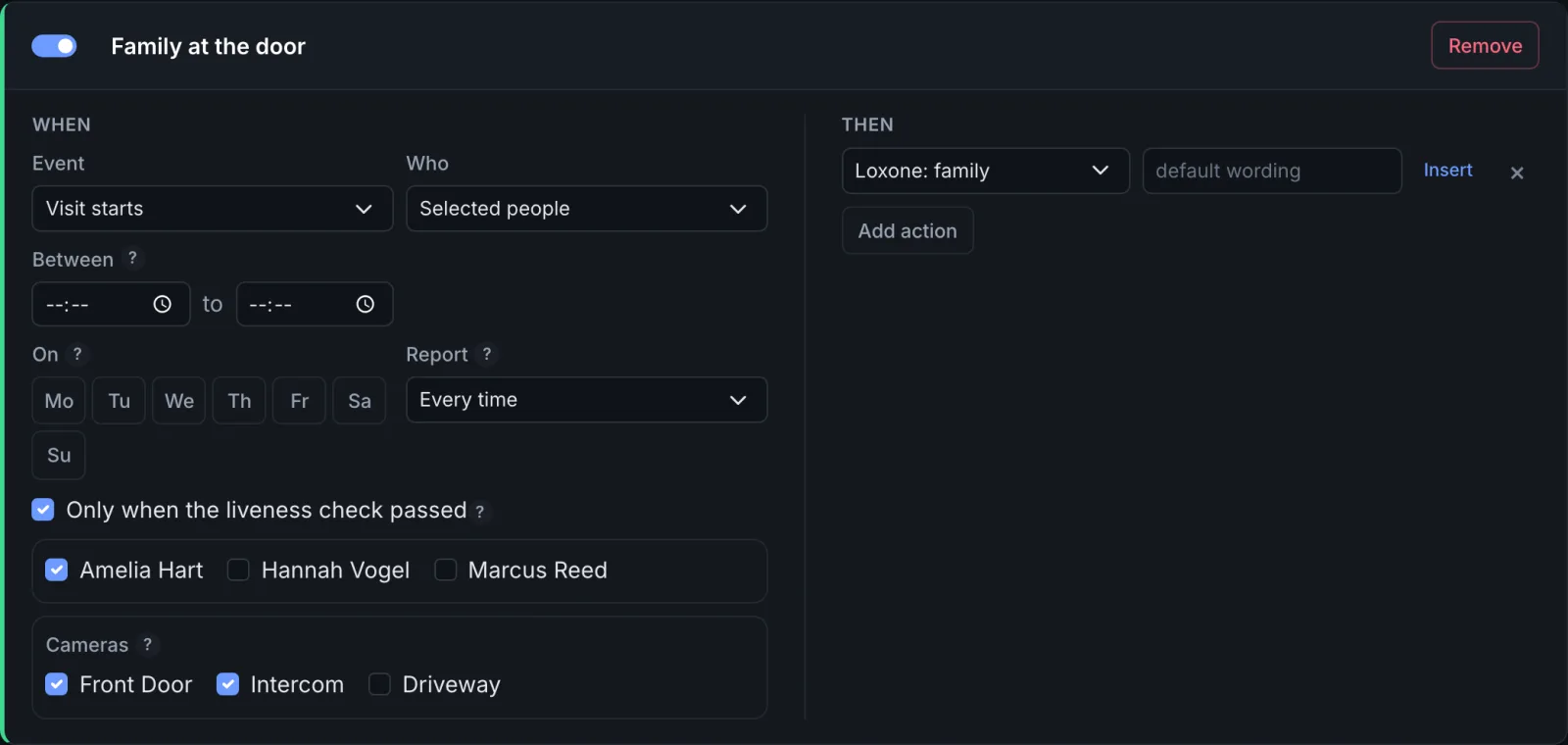
The liveness check stops a photo held up to the camera. It does not make a face a safe key on its own.
The visit gap and the time zone
The slider at the top of the page sets the Visit gap: sightings of the same person less than this far apart belong to one visit, and one visit is announced once. 30 seconds is the default, short enough that two callers do not merge, long enough that a turned head does not split a visit in two.

The note above it says which time zone messages are written in. If it says UTC but you
are not in UTC, the container was started without TZ, see Installation.
It also reminds you that messages are sent by FaceStream.AI's video process: a receiver
address has to be reachable from the machine FaceStream.AI runs on.
Recent deliveries
At the bottom of the page, every message that went out is listed with the connection, the event and the person, whether it was delivered, how long it took, and what the other side answered. What was sent unfolds the exact text. The last 500 are kept.
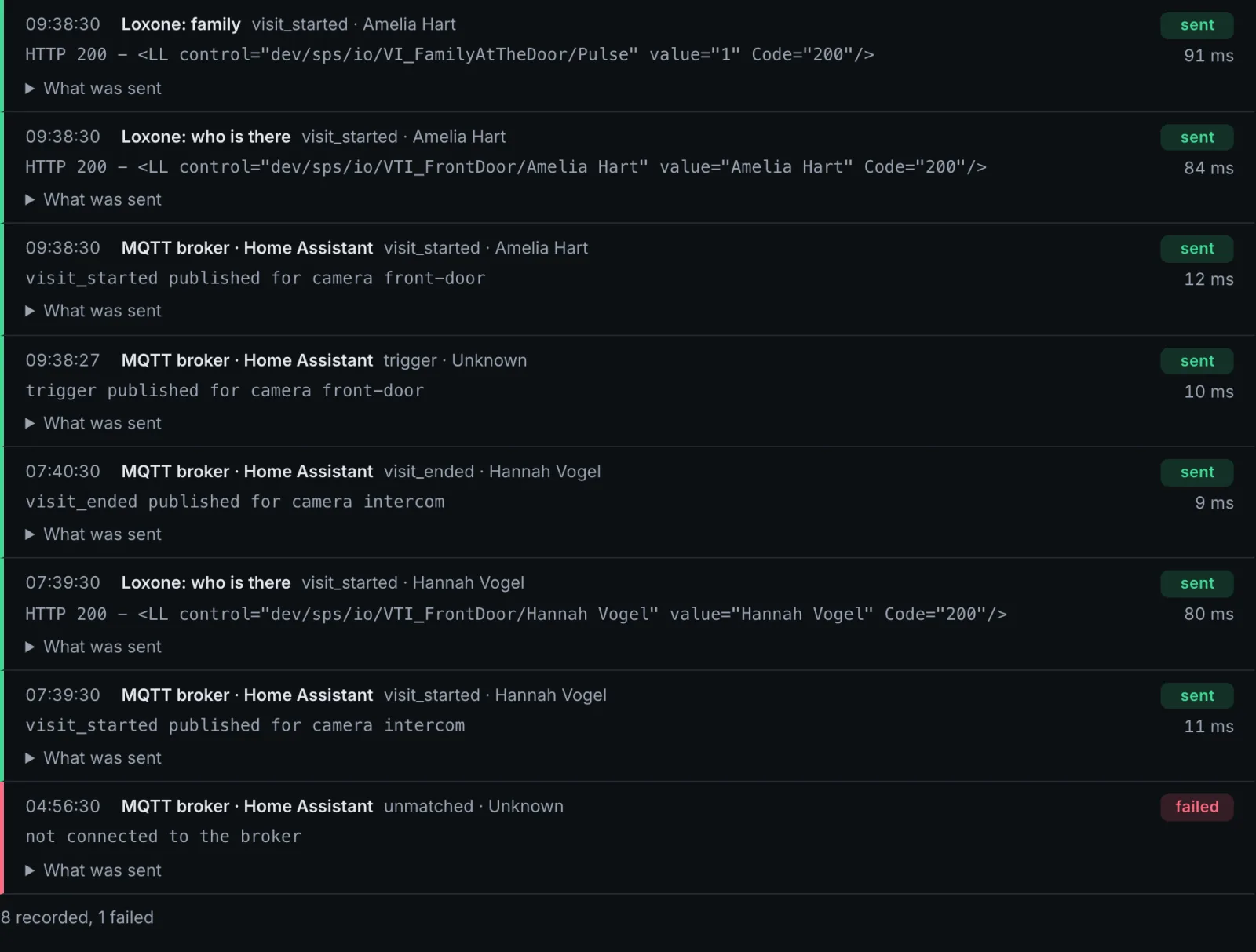
When a message does not arrive, the answer usually says why:
401 Client Error: Unauthorized means the receiver refused the sign-in, timed out that
nothing answered at that address, not connected to the broker that the MQTT broker was
not reachable at that moment. Failures only hides the rest. Home Assistant's own messages carry the
name of the MQTT connection followed by · Home Assistant. Messages sent with Test
are not listed.
Troubleshooting goes through the usual causes.