Integrations
Face recognition with Loxone
Face recognition for the Loxone Intercom and Miniserver: the bell starts the recognition, the name lands on a virtual input. Step by step.
On this page
FaceStream.AI recognises the people at your Loxone Intercom or any other camera and and tells the Miniserver who is there. What follows is configured where everything else in a Loxone home is configured, in Loxone Config: a lighting scene for the family, a push message for a stranger, the door for the people you choose.
FaceStream.AI reports; the Miniserver decides.
How it fits together
- Somebody rings at the Intercom. The Miniserver calls FaceStream.AI's trigger address.
- FaceStream.AI looks at the Intercom's picture for a few seconds.
- It sends the name to a virtual text input on the Miniserver, or
Unknown, and, for the people you chose, a pulse to a virtual input. - Your configuration in Loxone Config does the rest.
Every step works on its own. Without step 1 the camera recognises continuously; without step 3 you only use the pulse; and any camera that delivers RTSP or MJPEG can take the Intercom's place.
What you need
| FaceStream.AI | Pro and up: the Loxone connection and recognition on request are part of Pro. With the Free edition, see Loxone with the Free edition |
| Loxone | A Miniserver and Loxone Config |
| A camera | The Loxone Intercom, or any camera with RTSP or MJPEG |
| A Loxone user | A user of its own for FaceStream.AI, with a password |
| The network | FaceStream.AI and the Miniserver reach each other by their local addresses |
The examples use 192.168.1.20 for FaceStream.AI, 192.168.1.10 for the Miniserver and
192.168.1.52 for the Intercom.
Step 1: The Intercom as a camera
The Intercom does not announce itself to the camera search, so its address is typed in.
- In FaceStream.AI, Camera → Add camera → Enter an address instead.
- Stream URL
http://192.168.1.52/mjpg/video.mjpg, and in Username and Password the sign-in that protects the Intercom's picture. - When it recognises: On request only, the bell will start it in step 2.
- Name the camera Intercom and Save cameras.
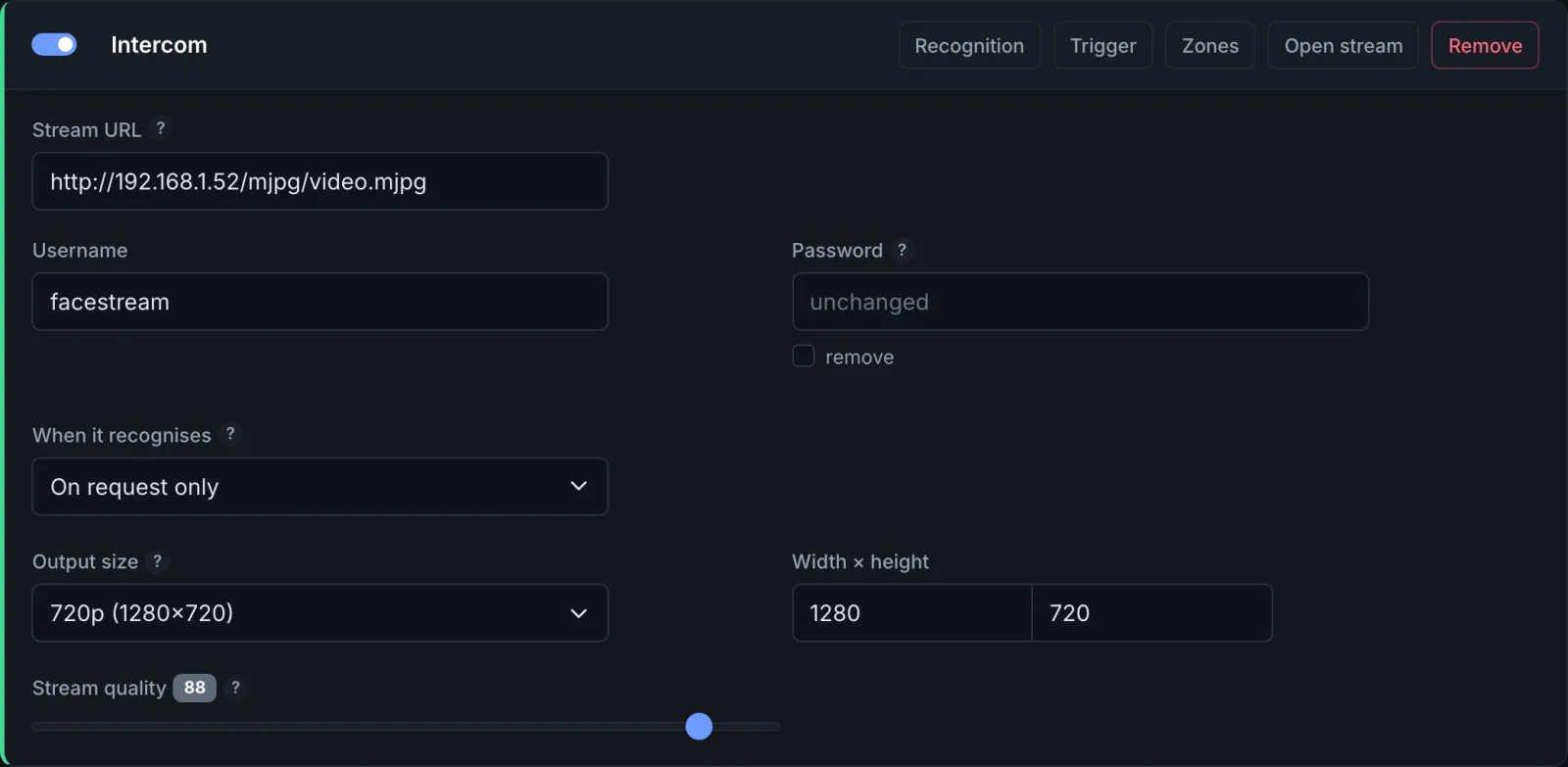
The Overview now shows the Intercom's picture. If it stays black, check the address
and the sign-in in a browser: http://192.168.1.52/mjpg/video.mjpg asks for the same
user and password.
Step 2: The bell starts the recognition
-
In FaceStream.AI, open the Intercom's Trigger dialog and copy the Trigger URL:
http://192.168.1.20:8100/trigger?camera=intercom&token=…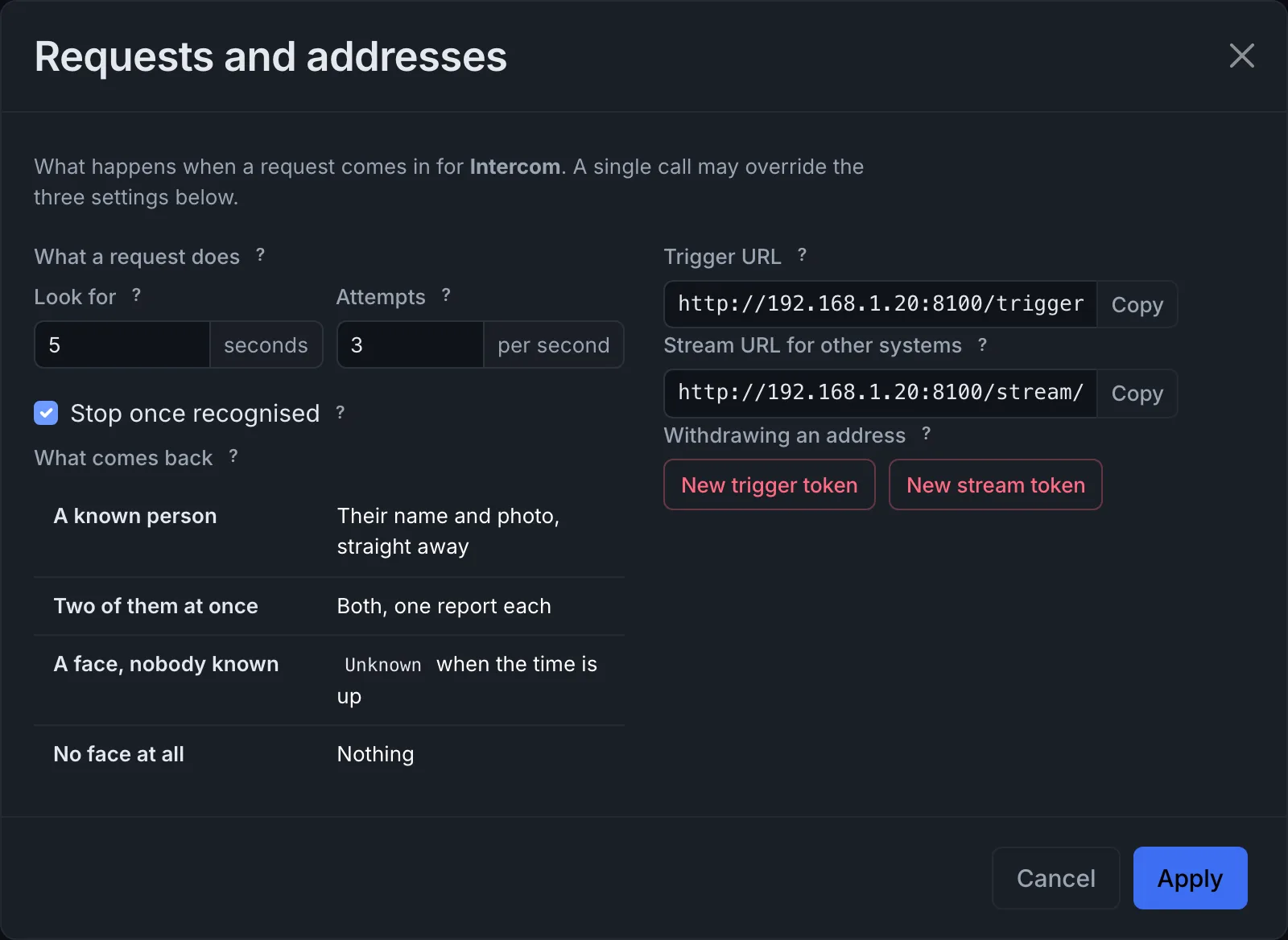
-
In Loxone Config, add a Virtual Output with the address
http://192.168.1.20:8100. -
Below it, add a Virtual Output Command. As Command for ON, enter the rest of the trigger URL, starting with the slash:
/trigger?camera=intercom&token=…. The HTTP method stays GET. -
Connect the command to the Bell output of the Door Controller block your Intercom is assigned to.
-
Save the configuration to the Miniserver.
From now on, every ring starts a request: FaceStream.AI looks for five seconds, three times a second, and stops as soon as it has recognised somebody. The settings in the dialog change that for the Intercom.
To check the address without ringing, open it in a browser. It answers at once with
{"status": "ok", …}; the recognition then runs in the background.
Step 3: Tell the Miniserver who is there
-
In Loxone Config, add a Virtual Text Input called
VTI_FrontDoorand save to the Miniserver. -
In FaceStream.AI, Notifications → Add connection → Loxone:
Field Value Miniserver address 192.168.1.10, the local address, not a CloudDNS or Remote Connect addressText input VTI_FrontDoor, exactly as in Loxone ConfigUser, Password The Loxone user for FaceStream.AI Message [[name]]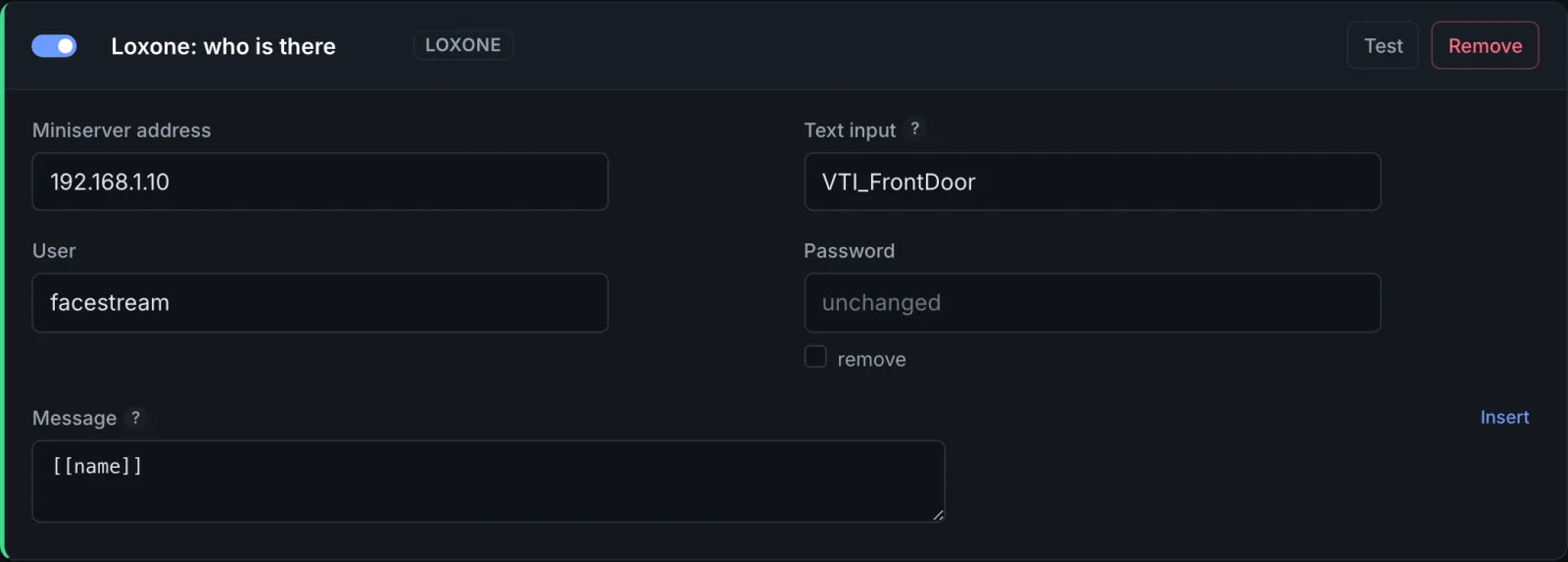
-
Test. The text input now says FaceStream test.
-
Add two rules, one for people it recognises, one for people it does not:
Rule Event Cameras Then Who is at the door Visit starts Intercom the Loxone connection Someone we do not know Face without a match Intercom the Loxone connection -
Save connections and rules.
The second rule matters: at a camera on request, a stranger is not a Visit starts but a
Face without a match, once the five seconds are up, see
Recognition and requests. The
text input then says Unknown. If nobody was in the picture at all, nothing is sent: the
text keeps its old value, so reset it in Loxone Config if you show it somewhere.
Loxone can show a virtual text input in its app, so everybody in the house sees who is at the door, and the text can go into a push message from the Miniserver.
Step 4: React to particular people
For logic, the hallway light for the family, the door for the people you chose, a pulse on an ordinary virtual input is easier to work with in Loxone Config than a text.
-
In Loxone Config, add a Virtual Input called
VI_FamilyAtTheDoor. -
In FaceStream.AI, add a second Loxone connection with Text input
VI_FamilyAtTheDoorand the MessagePulse. The field takes the name of any virtual input, and the Miniserver understandsOn,OffandPulsefor a digital one.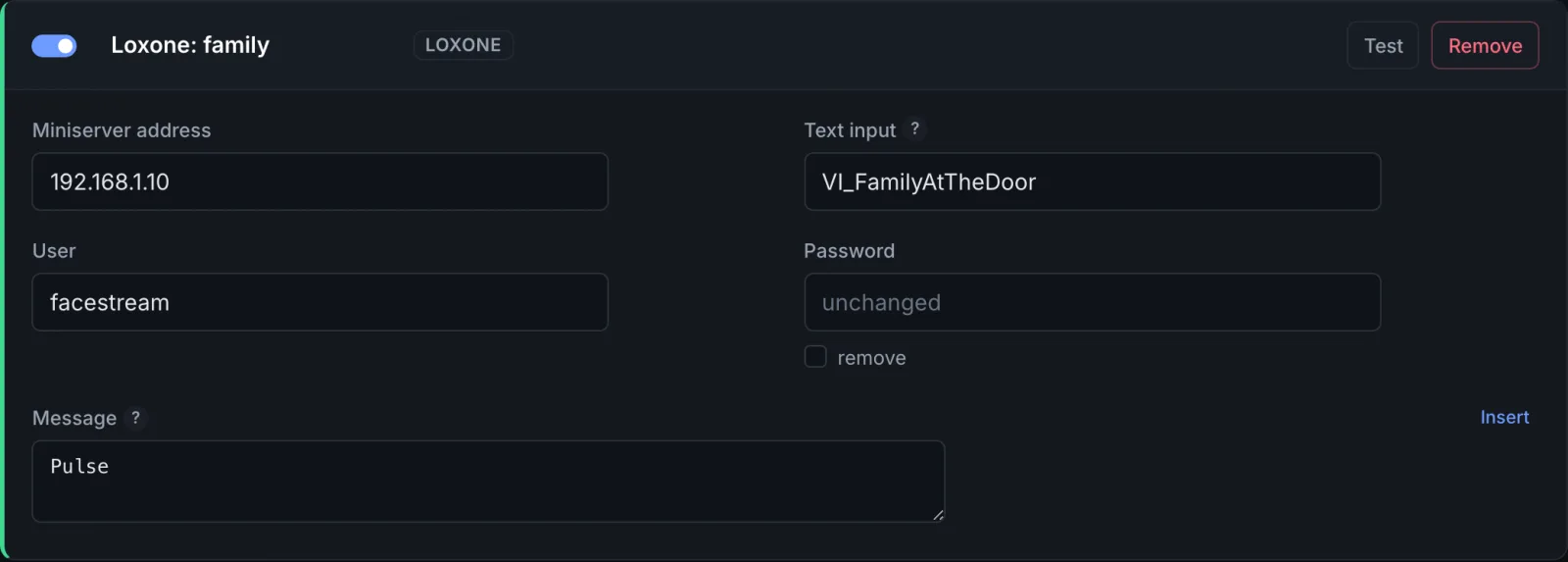
-
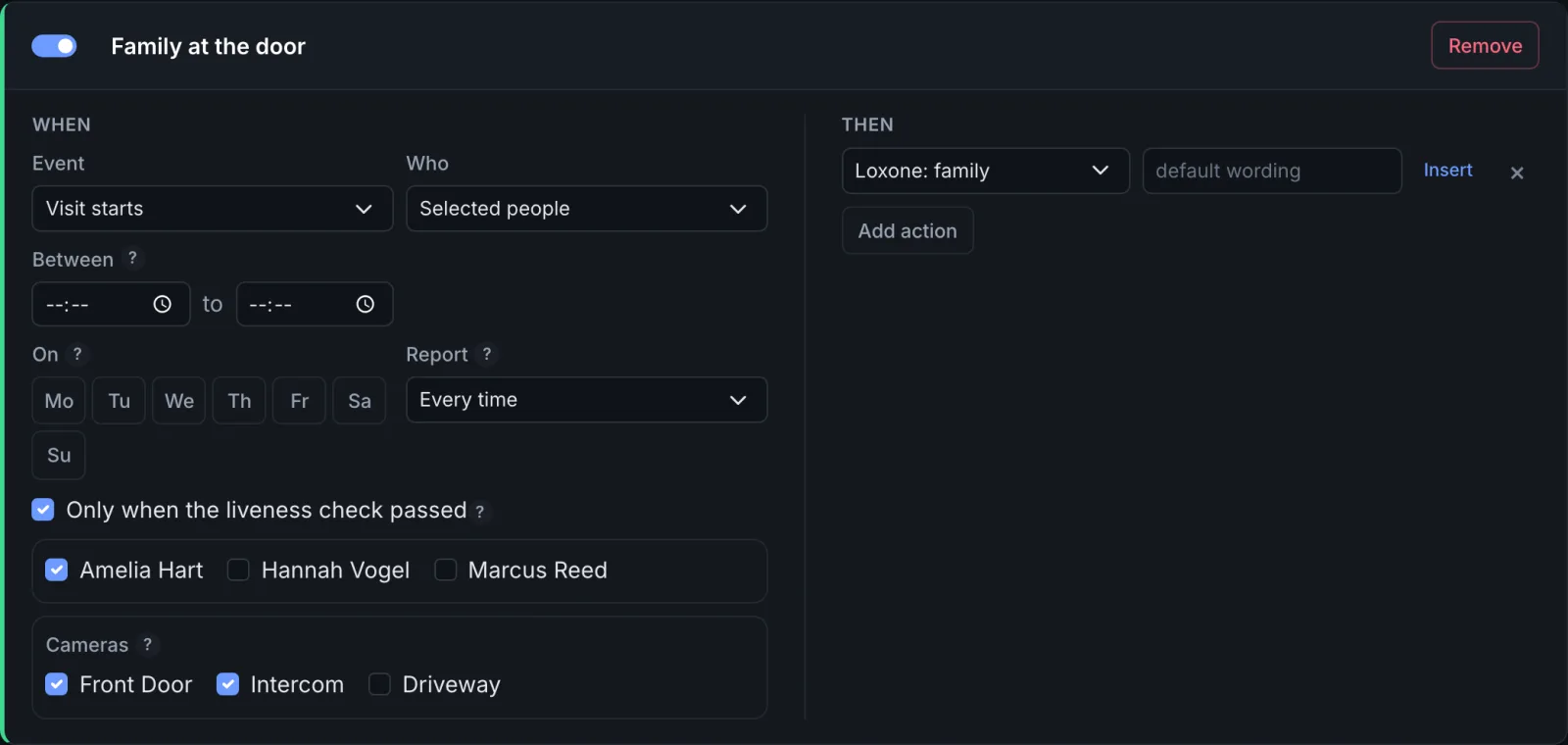
Add a rule Family at the door: event Visit starts, Who Selected people with the family ticked, the door cameras ticked, and Only when the liveness check passed. Then: the new connection.
-
In Loxone Config, connect
VI_FamilyAtTheDoorto whatever should happen.
One connection sends to one input. For a second group, the cleaner on Tuesdays, say, add another virtual input, another connection and another rule; a rule can limit itself to certain days and times with Between and On.
If the pulse opens the door
The Miniserver opens it, not FaceStream.AI, so the Miniserver should only do so on a pulse that deserves it. The rule above already does two of the three things that matter: it reacts to Visit starts only, never to a suspected spoof, and only when the liveness check passed. The third is the bell itself: with On request only, the Intercom looks only when somebody rang, and the face answers a question instead of being the only key.
The liveness check stops a photo held up to the camera on the off chance. It does not stop somebody who prepared. Whether a face may be the only key to your door is your decision. Rules that open a door says more.
Loxone with the Free edition
The Free edition has no Loxone connection, but it can send UDP, and the Miniserver listens to UDP. The camera recognises continuously, because requests are part of Pro.
- In Loxone Config, add a Virtual UDP Input with FaceStream.AI's address as the
sender and a free port as the receiving port, for example
7000. - In FaceStream.AI, Add connection → UDP: Host
192.168.1.10, Port7000, Message[[name]]. A rule on Visit starts sends it. - In Loxone Config's UDP monitor, the names arrive as they are recognised. Create a Virtual UDP Input Command from a name to get a pulse whenever that name arrives.
UDP is not acknowledged: whether the Miniserver received a message, FaceStream.AI cannot know, and Recent deliveries only says it was sent.
What FaceStream.AI sends
One HTTP request per message, over the local network:
GET http://192.168.1.10/dev/sps/io/VTI_FrontDoor/Amelia%20Hart
Authorization: Basic …
The value is encoded for the address, so names with spaces or accents arrive as they are
written. Any placeholder works in the message, [[name]], [[source]] for the camera,
[[known]], [[time]]; see Connections and rules.
The Miniserver's answer is listed under Notifications → Recent deliveries.
The request uses plain HTTP with the user and password of the connection, which is why FaceStream.AI should have a Loxone user of its own and talk to the Miniserver only inside your network.
When it does not work
| What you see | What to check |
|---|---|
401 Client Error: Unauthorized under Recent deliveries |
User or password of the Loxone connection |
timed out or Connection refused |
The Miniserver address: the local IP address, reachable from the machine FaceStream.AI runs on |
| Delivered, but nothing changes in Loxone | The name of the input must match Loxone Config exactly, and the configuration must be saved to the Miniserver. The Miniserver's answer under What was sent usually says which |
| The bell does not start a recognition | Open the trigger URL in a browser. {"status": "ok"} means the Virtual Output's address or command is the problem; an error names what is wrong with the URL |
Family members arrive as Unknown |
Better photos, ideally taken by the Intercom itself. See People and photos |
The text input is never Unknown |
The rule on Face without a match is missing |
Loxone is a trademark of Loxone Electronics GmbH. FaceStream.AI talks to the Miniserver through its documented web interface and is not affiliated with, certified or endorsed by Loxone.