Getting started
Editions and licence
What FaceStream.AI Free, Pro, Business and Enterprise include, how to enter a licence, and how activation and the update period work.
On this page
There is one FaceStream.AI. Free, Pro, Business and Enterprise are the same program; the licence you enter decides what it may do. Upgrading means pasting a licence, not reinstalling, and your cameras, people and rules stay as they are.
What each edition includes
| Free | Pro | Business | Enterprise | |
|---|---|---|---|---|
| Cameras | 1 | 3 | 15 | 50 |
| People | 3 | 100 | 1,000 | unlimited |
| Connections | 1 | 10 | unlimited | unlimited |
| Rules | 1 | 20 | unlimited | unlimited |
| Actions per rule | 1 | 5 | unlimited | unlimited |
| Detection zones per camera | not available | 5 | 25 | unlimited |
| Connection types | UDP | all except syslog | all | all |
| Recognition on request, a doorbell starts it | not available | ● | ● | ● |
| Liveness check, a face or a photo of one | not available | ● | ● | ● |
| Rules with times, days, quiet periods, chosen people and their own wording | not available | ● | ● | ● |
| Rules on a visit ending and on a suspected spoof | not available | ● | ● | ● |
The connection types are Home Assistant and anything else over MQTT, Loxone, KNX, HTTP webhooks, e-mail, Telegram, Pushover, ntfy and UDP; syslog is part of Business. Home Assistant discovery is a switch in the MQTT connection, so it comes with Pro.
The full comparison and the prices are on facestream-ai.com/editions. The limits are enforced by the program itself: the interface says where you are (3 of 3 cameras used) and which edition allows more.
Entering a licence
Your licences are in your account on facestream-ai.com. A licence is one long line of text
that starts with FSL1..
- Copy the whole licence from your account.
- In FaceStream.AI, open Overview, and on the Licence card press Enter licence.
- Paste it and Save.
FaceStream.AI checks the signature, switches to the new edition and restarts recognition, which takes a few seconds. Nothing else changes.
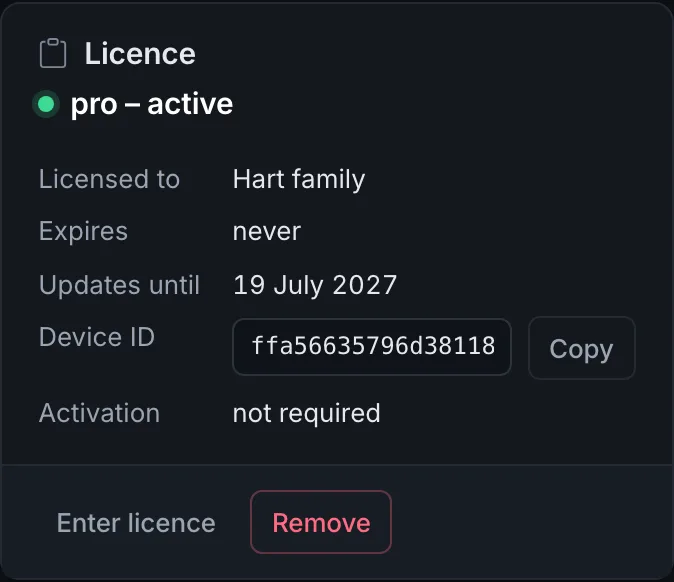
| On the card | Means |
|---|---|
| Licensed to | The name the licence was issued to |
| Expires | When the licence ends, never for a licence without an end date |
| Updates until | The last publication date of versions this licence covers, see below |
| Device ID | The identity of this installation. Your account lists your devices under it |
| Activation | Whether this licence is confirmed online, and the last answer |
Activation
A licence can require online activation; the licence card says so under Activation,
and shows not required if it does not. With activation, the installation asks the
licence server when it starts and then every six hours, sending the licence ID, the
device ID, the version and the edition, nothing about cameras, people or visits.
If the server cannot be reached, nothing stops. FaceStream.AI keeps working with the last confirmation it received, for up to 14 days, and only then falls back to Free. A door that depends on it does not stop working because a server is down.
For an installation without internet access there are licences without online activation. Get in touch before you buy one.
New hardware. A licence is bound to the device ID. If you move the data folder to a new machine, the device ID moves along and nothing needs doing. If you set up a new installation from scratch, release the old device in your account first.
Your update period
A licence includes the versions published up to the date under Updates until. After that, the version you run keeps working for as long as the licence is valid; newer versions are not covered.
The update button at the bottom left only offers versions your licence covers. If a newer
one exists, it says so and links to extending the update period. A version published
after your update period runs as the Free edition with that licence, so when you update
by hand, pick a version tag such as 2.4.0 rather than latest. See
Updating.
When a licence ends or is removed
FaceStream.AI falls back to the Free edition. It does not stop.
Cameras, people and rules beyond the free limits stay stored but stop working: only the first camera starts, connections other than UDP are not used, detection zones and the liveness check have no effect, and a camera set to On request only recognises continuously instead, because requests need Pro. Everything comes back as it was the moment a valid licence is entered again.
Remove on the licence card does the same on purpose, for example before handing the hardware on.