Setting up
People and photos
Enrol the people FaceStream.AI should recognise: which photos work best, how many you need, and how to rename or delete someone.
On this page
Recognition compares every face a camera sees with the photos stored under People.
Somebody without a photo is reported as Unknown. There is no training step and nothing
to wait for: a photo counts from the moment it is added.
One set of photos serves every camera, a person enrolled once is recognised at the front door and in the garage alike.
Adding a person
- Open People and type the name into Add photos for. It is the name that appears in messages, in Home Assistant and in the event log, so write it the way you want to read it.
- Drop one or more photos onto the field below, or click it to choose files. JPEG and PNG work.
- Every photo is checked as it arrives. One without a usable face is refused with the reason; the others are added.
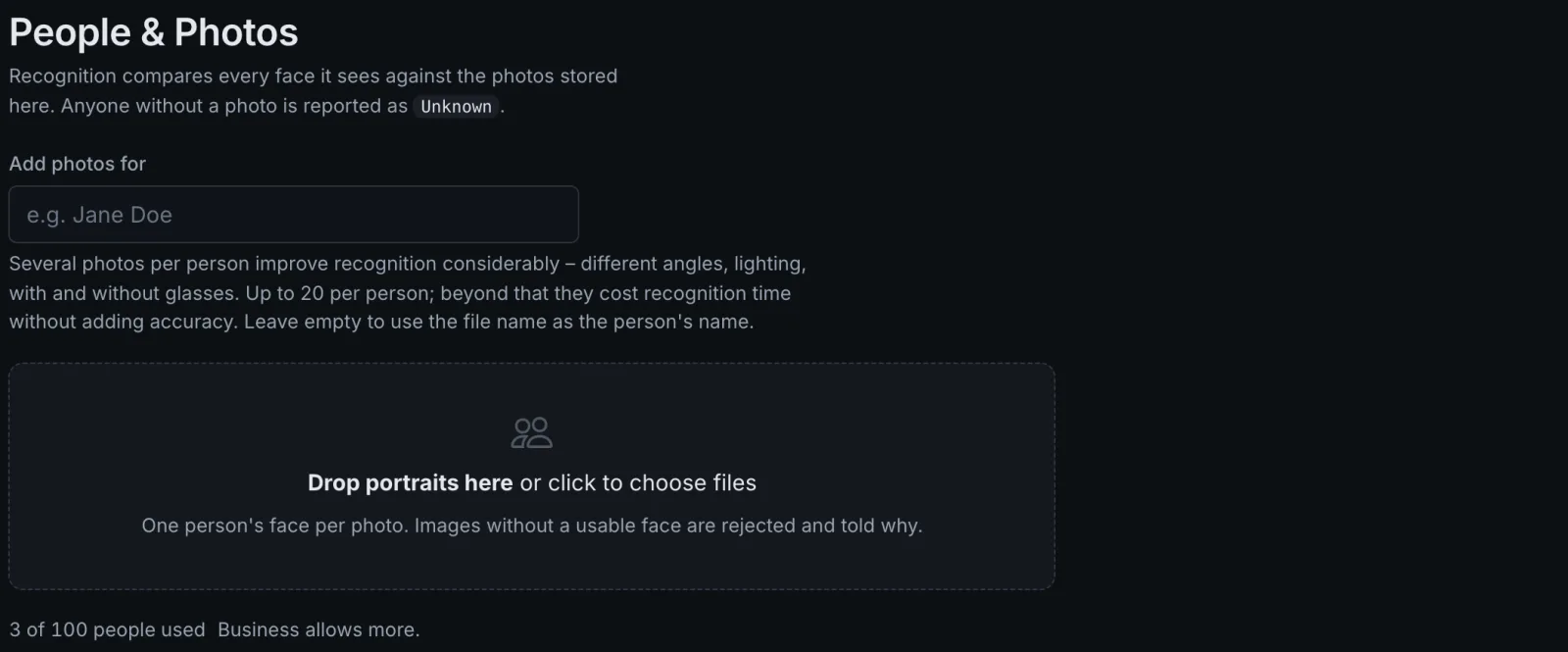
To add more photos later, use Add photos next to the person. Recognition restarts for a moment after each change; there is nothing to save.
How many people you can enrol depends on the edition: three in Free, a hundred in Pro, a thousand in Business. A further photo of somebody already enrolled never counts against the limit.
Photos that recognise well
Recognition is only as good as the photos it compares with. What helps most:
- The face towards the camera, not in profile. A slight turn is fine.
- Sharp and evenly lit. No harsh shadow across half the face, no backlight.
- Nothing covering the face, no sunglasses, no scarf, no hand.
- One person per photo. Cut a group photo down to one face first.
- Large enough. A face that fills a good part of the photo; a tiny face in a holiday picture is too little to go on.
Two to five photos per person are better than one: different days, different light, with and without glasses, with the hair up and down. Up to 20 per person are accepted; more would cost recognition time without adding accuracy.
The best photos of all come from the camera that will recognise the person: the angle, the lens and the light are then exactly right. Under Events, open a visit of that person, save the whole picture and cut it down to the face with some room around it. forehead and chin included, the check refuses a face cut too tightly, and add it.
Renaming and deleting
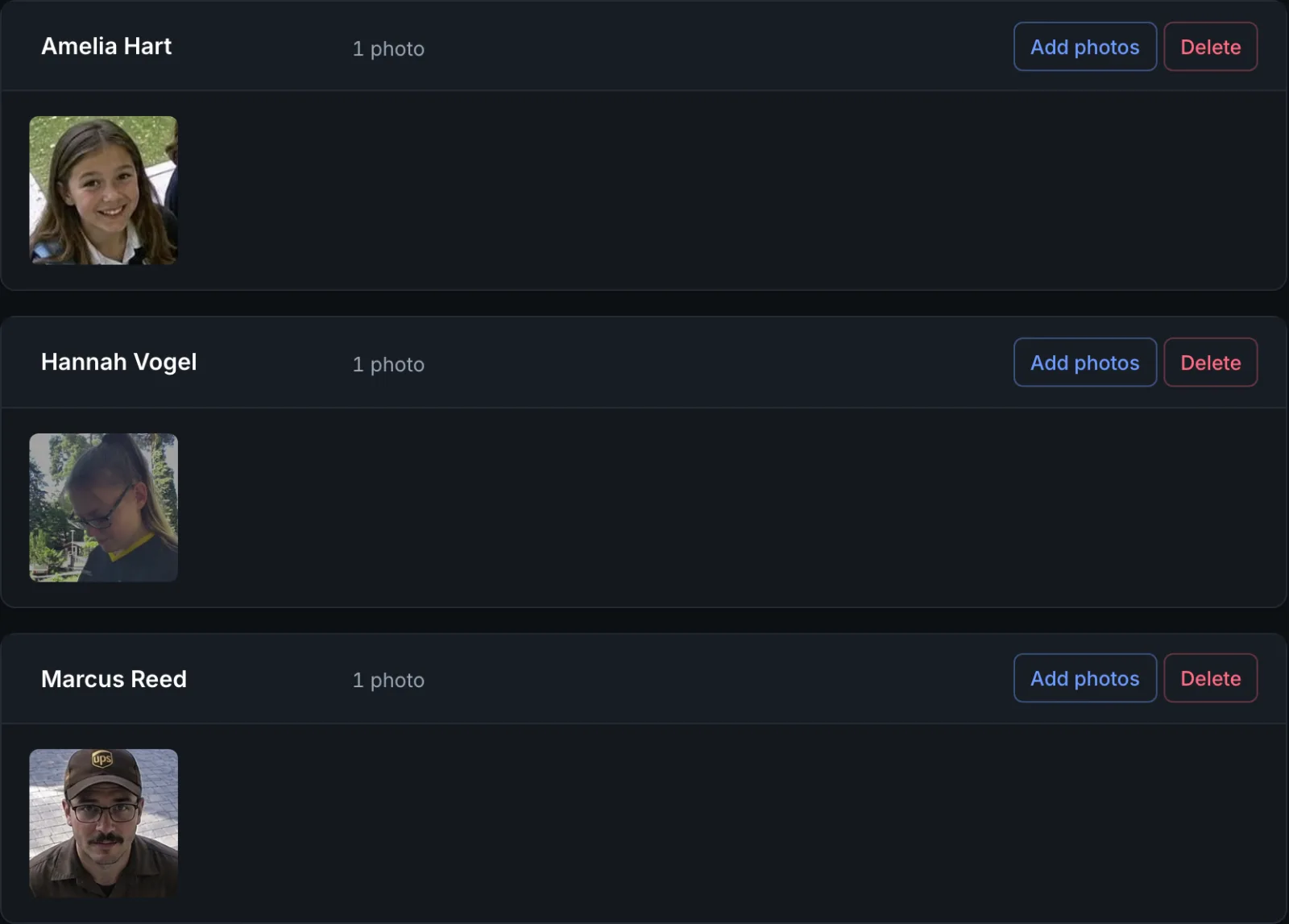
Under Everyone known, the name of each person is a field: change it and press Enter to
rename them. Add photos adds more, the cross on a photo removes that one photo, and
Delete removes the person with all their photos, from then on they are reported as
Unknown.
Two things do not follow a new name, because they refer to the old one:
- Rules that react to selected people. Open them and tick the person again.
- Visits already in the event log keep the name they were recorded with, and so do automations in Home Assistant or on the Miniserver that compare names.
Deleting a person removes their photos, not their past visits. To remove somebody entirely, because they asked you to, delete their visits under Events as well; see Privacy and your data.
Who you enrol
Face photos are personal data, and recognising someone is processing it. Enrol people who know and agree, your household, staff who have been told, guests who asked for it, and tell visitors that a camera recognises faces. Privacy and your data says what FaceStream.AI stores, where, and for how long.